Going to a meet
Find a meet
You do not need to belong to a club to show up to its meet.
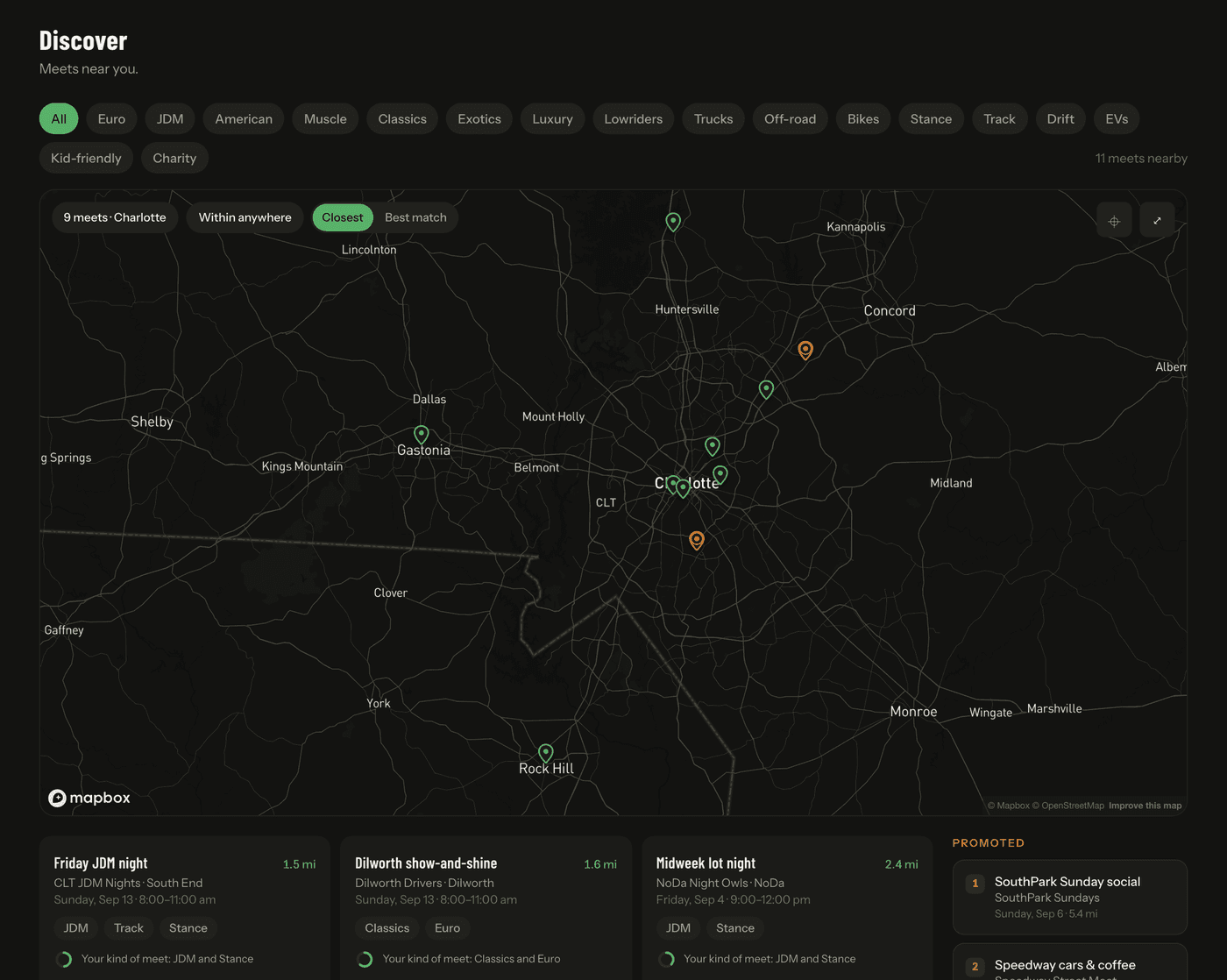
- 1Open Discover.
- 2Allow location if you want distances, or pan the map yourself.
- 3Filter by vibe: JDM, Euro, classics, kid-friendly, whatever you are after.
- 4Tap a meet to open it.
RSVP
RSVPs tell a meet who is coming, and on a gated meet they are how you get the address.
- 1Open the meet.
- 2If you have more than one car, pick which you are bringing.
- 3Press RSVP: bringing my car. Coming to look instead? Press Spectating.
- 4The exact address appears straight away. Add it to your calendar or turn on a reminder.
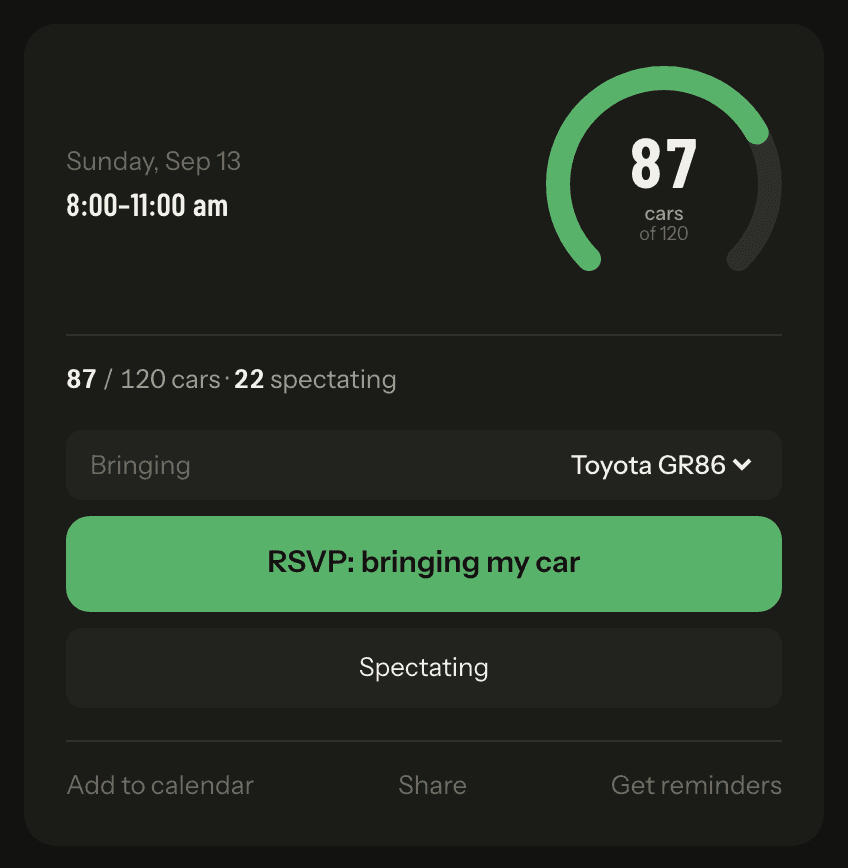
Capacity counts cars, not people. Fans come without a car and do not use a spot. Past the cap, cars join a waitlist and move up when someone drops.
Change your mind any time. Cancelling frees your spot and takes the address back off your view.
Join a club
Joining is separate from turning up. You can RSVP to a club's meets without being a member.
- 1Open any meet the club is running.
- 2Scroll to Joining, under the RSVP.
- 3Press Ask to join.
- 4An organizer approves it or passes. You will see which the next time you open the page.
Being a member puts you on the club's roster and opens its members-only pages. It is not a requirement for rolling in.
A club that is already full turns the ask down on the spot. Its roster has a cap, and you can still RSVP to its meets either way.
Your garage
Your cars live in your garage, and each one gets a page you can link anywhere.
- 1Open My garage from the nav, or your name from Account.
- 2Add a build. Give the year first, then the make and model suggest as you type.
- 3Upload a photo of it, or claim a shot of it from your club's photo pool.
- 4Keep your mods in a note already? Import from a note and it fills the list for you.
- 5Update power after a dyno day, and the chart draws itself.
- 6Log a service by mileage, and set how often each one comes round if you want reminders.
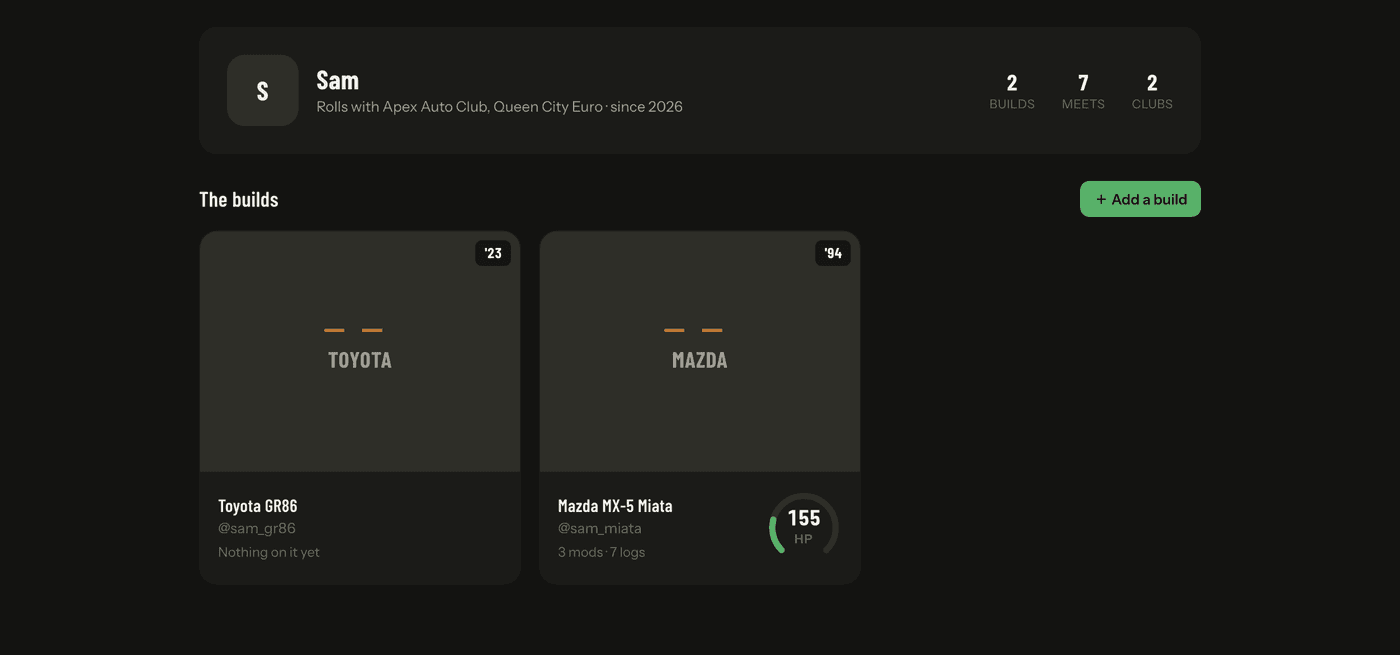
Type anything you like in the make and model. The suggestions cover cars, trucks and bikes, but a kit car or a swap that no list has heard of still goes in exactly as you type it.
Power and torque read as one card, with every dyno day on a line. Add a figure from that card and it lands in your build timeline too, so there is one story rather than two.
The maintenance log is keyed on your odometer, not the date. Real service records are a list of mileages, so a date is optional. Set an interval on a job and it will tell you when the next one is due. Leave it and it just says when you last did it.
When you RSVP with a car, that build shows up in the meet's roll-in grid. Claim a photo of it from a meet gallery and the shot becomes part of the build.
Running one
Start a club
A club holds your meets, your members, and the channels you publish to.
- 1Press Start a club, from the nav or from Account.
- 2Name it, then pick your city from the list. Pick it rather than type it: the city is what puts your meets in front of people nearby.
- 3Choose vibe tags so the right people find you.
- 4Connect channels, then schedule your first meet. Both can wait if you would rather look around first.
Plan a meet
Set a repeating meet up once and way-point makes every date in the series.
- 1Press Plan a meet.
- 2Pick the pattern: one-off, weekly, or a monthly rule like every 2nd Sunday.
- 3Add the venue, the neighborhood, and the exact address.
- 4Choose who sees that address: public, RSVP'd members only, or club-private.
- 5Set the cap in cars and turn the waitlist on.
- 6Confirm you have the venue owner's permission. This is a real check, not a box to click past.
- 7Press Schedule and queue posts.
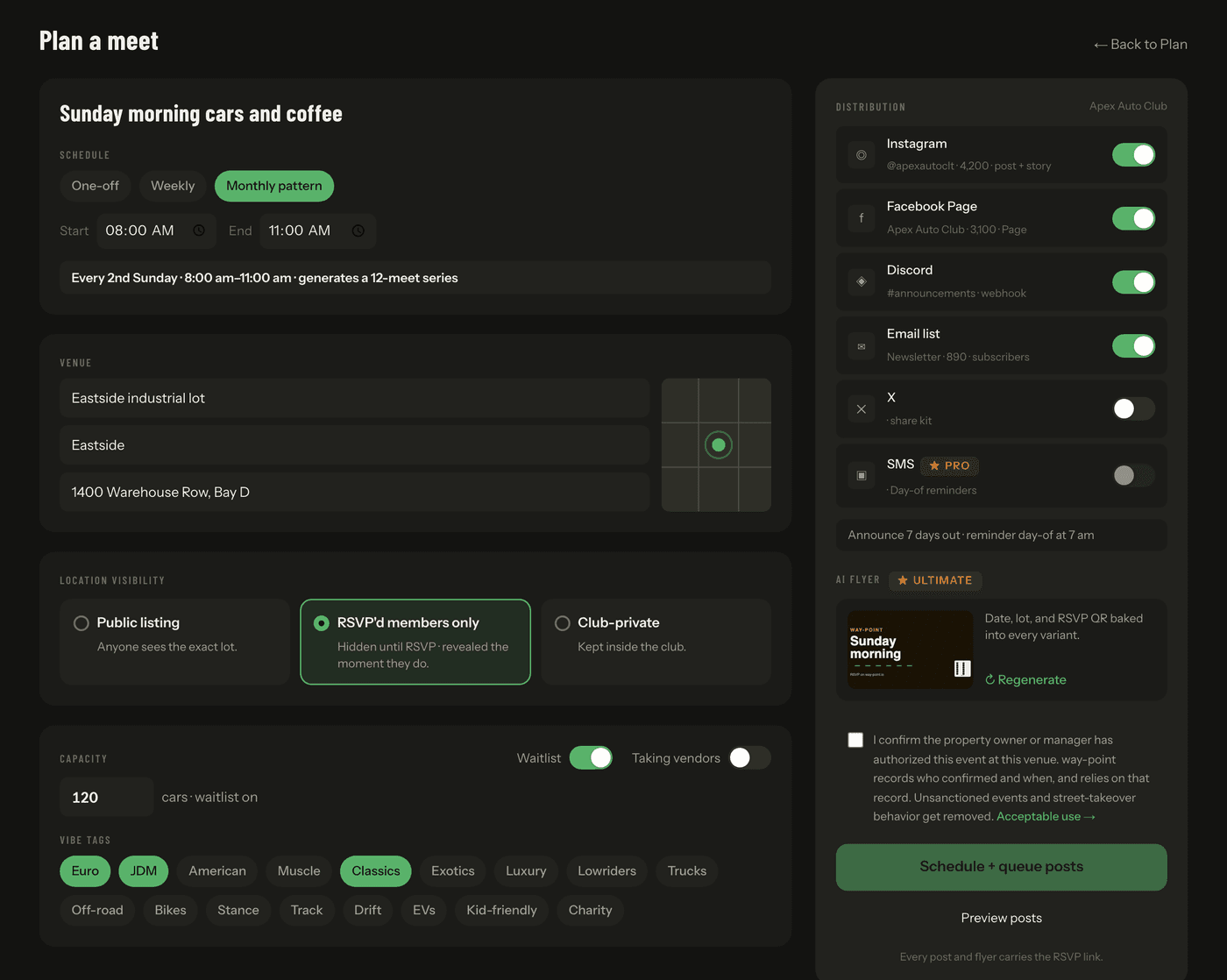
The venue confirmation records who confirmed it and when. It is what makes a venue trust the next meet, and it is why unsanctioned events get removed.
Announce it
Connect the channels your club already uses once. Every meet then publishes to all of them.
- 1Open Account, then Integrations.
- 2Connect Discord with an incoming webhook, from Server settings, Integrations, Webhooks.
- 3Connect your email list, and any social account you post from.
- 4Schedule a meet. The posts queue themselves, and the reminder sends on the morning of the meet, in your club's timezone.
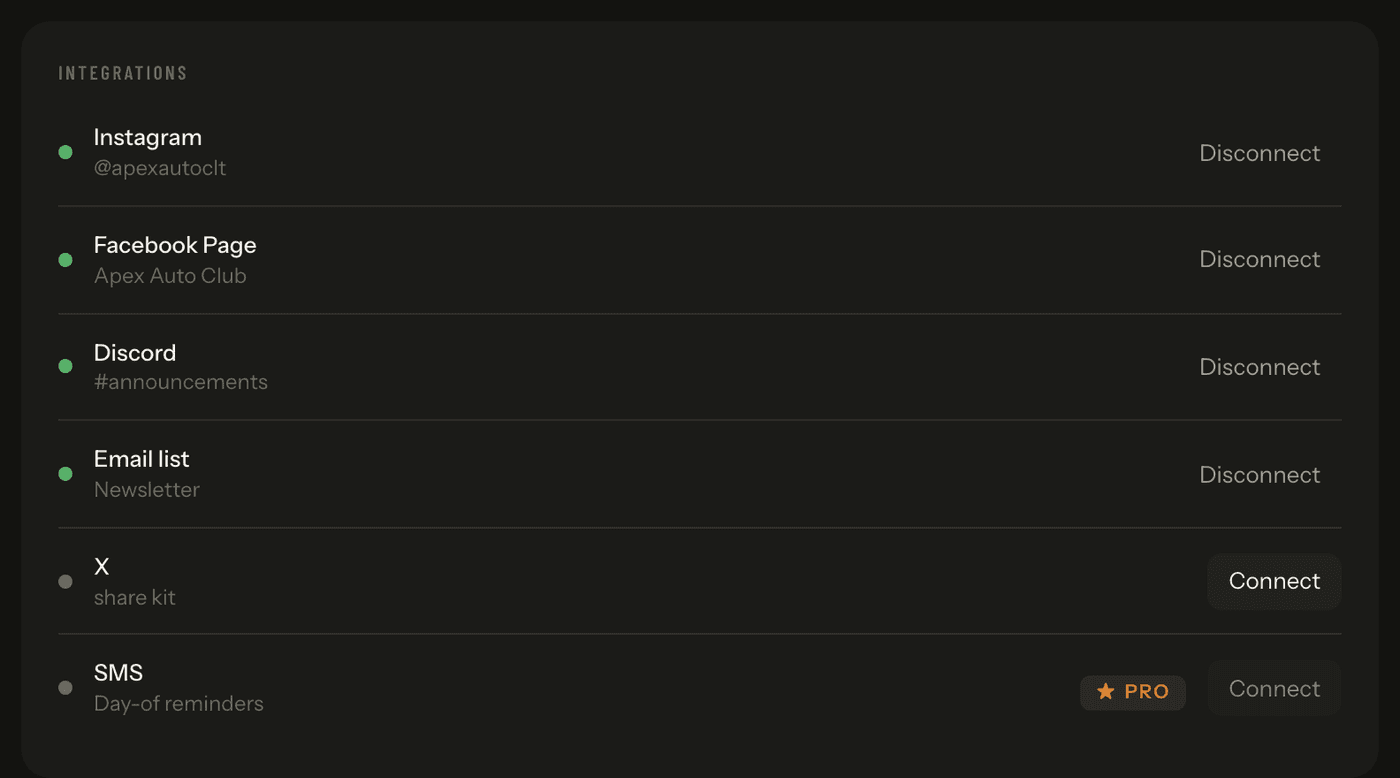
Discord and email send for real today. Instagram and Facebook give you a ready post to paste, until their approvals land. Every post links back to the RSVP page.
Approve members
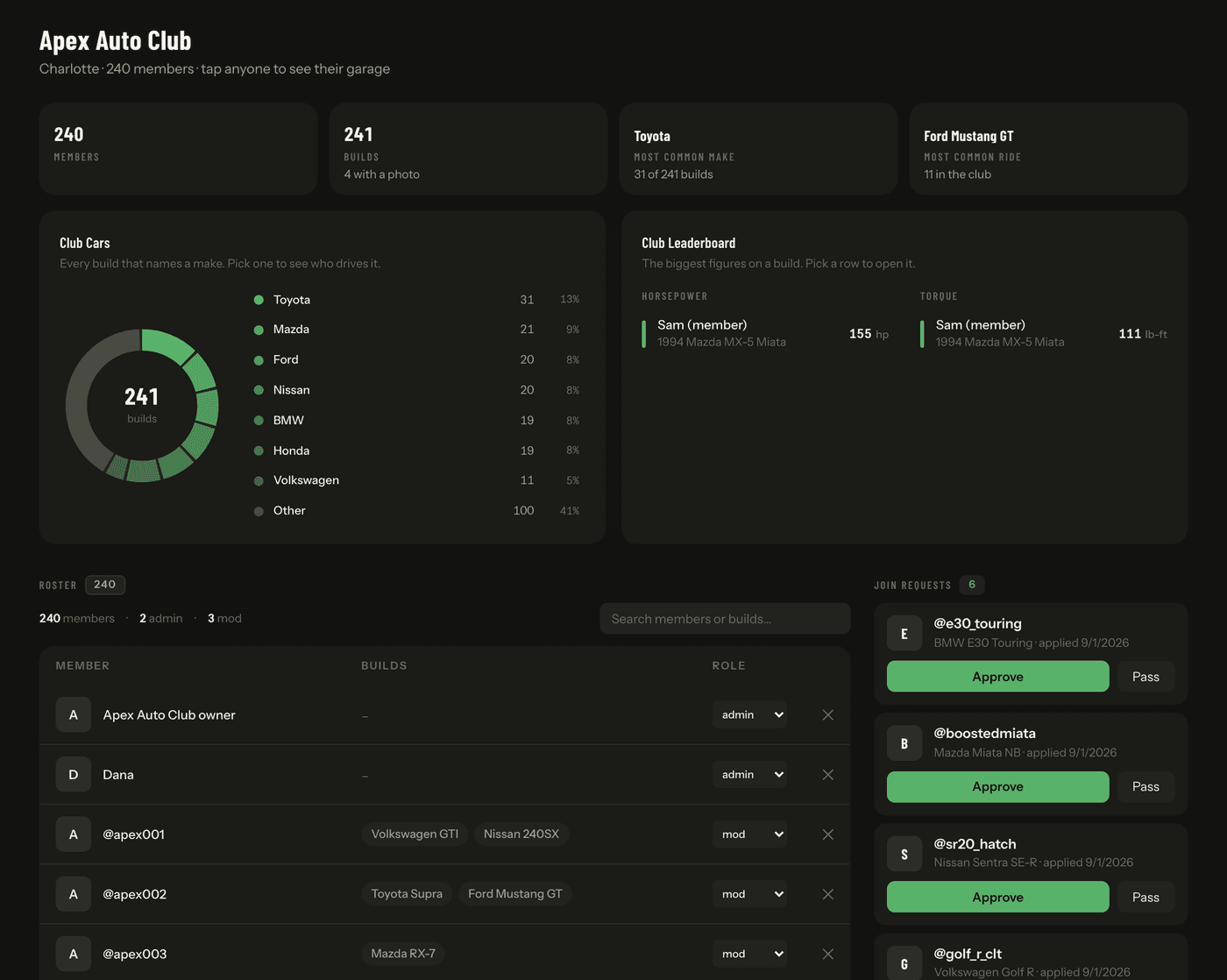
People who ask to join land in a queue on your club page.
- 1Open Club.
- 2Read the request at the top: who they are and what they drive.
- 3Approve to add them to the roster, or Pass to turn it down.
- 4Change anyone's role from the roster below. Mods run meets. Admins also handle club identity and roles.
Check cars in
Check-in tells the score who actually turned up, not just who said they would.
- 1Open the meet page on meet day. The scanner appears an hour before the start.
- 2Scan the code on each attendee's phone with the camera.
- 3Camera not playing along? Type the code instead.
- 4No gate at all? Use the honor button and let people mark themselves in.
All three write the same arrival record, so the score does not care which you used.
Scanning codes needs Pro. The honor button is free, so a free club still records who showed, and its meets still get scored. Reading that score is the part that needs Pro.
Read the score
After a meet, way-point scores it: who showed against who said they would, plus how the meet felt.
- 1Open Dyno for the newest meet's score.
- 2Open Season for the whole year: turnout, scores, and every meet in a list.
- 3Look at what moved a number. Weather, timing, vendors on site, the day of the week.
- 4Open Benchmark to compare with other clubs in your city.
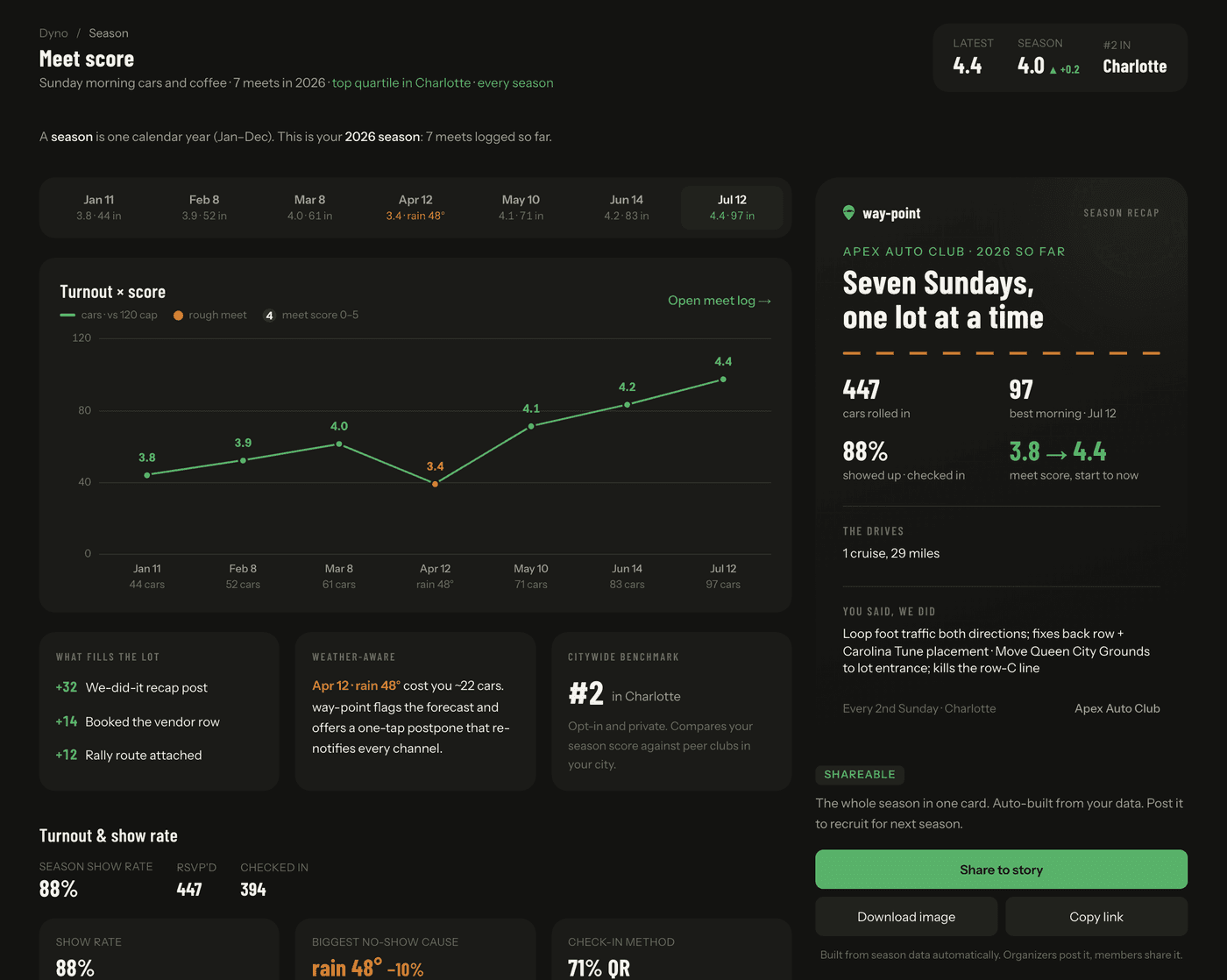
Reading the score needs Pro. All three pages do, and so do the meet and season recaps you share as a link.
We keep score on every plan. A free club is still scored, meet by meet, from the check-ins it already takes. Move up and the whole year is sitting there. Nothing starts from zero.
The benchmark is anonymous and aggregate. No other club sees your numbers, and you do not see theirs.
How it works
Who sees the address
Each meet picks one of three:
- Public. The address shows on the meet page to anyone.
- RSVP only. The page shows the neighborhood. The exact spot appears the moment you RSVP. There is no clock and no waiting.
- Club-private. Kept inside the club.
The gated option exists because a public address invites a crowd nobody planned for. RSVP first, and the meet knows who is coming.
Everything built from a gated meet follows the same rule. A calendar entry carries the neighborhood, not the lot. A shared link shows the teaser. A rally attached to a gated meet keeps its stops hidden until you RSVP.
If an organizer moves a meet, everyone who RSVP'd hears about it. Turn on Meet alerts from your account page and that news reaches your phone as a push: a moved meet, a cancelled one, or a new one on your club's calendar. On iPhone, install way-point to your home screen first.
Rallies
A rally is a cruise with stops. The organizer draws the route or asks way-point to suggest one, and the map follows real roads, so the mileage is the drive rather than a straight line.
Rallies are a Pro feature. On a gated meet the stops follow the meet's own rule: you see the route once you RSVP.
On meet day way-point watches traffic on that route. If the drive slows down, the organizer sees by how much and can push a faster road to the pack. The route only changes when they press it.
Photos
Every meet gets a gallery. Photographers drop shots in, and owners claim the ones of their car. A claimed shot becomes that build's photo.
The photo pool is a Pro feature.
Members and organizers
- Members find meets, RSVP, keep a garage, claim photos, and read rallies.
- Mods run meets: create them, edit them, check people in.
- Admins do all that, plus club identity and roles.
- The owner is the one admin who pays. The club runs on their plan.
The app looks different for each. A member sees a trimmed shell built around turning up.
Everyone gets the same Club page. It shows the roster, the makes people run, and what the club drives. Tap a name to open that garage. None of it costs a thing.
Plans
Free runs every core flow for one club of up to 25 members: meets, RSVPs, the address rule, parking plans, honor check-in, and announcements. Pro adds reach, scores, and identity. It also carries up to two vendor slots per meet. Ultimate takes the cap off vendor slots. It adds sponsor slots and the vendor roster too.
A plan belongs to a person, not to a club. Every club runs on its owner's plan. Buy one and every club you own runs at that tier. Each club names its owner, so the other admins can see who pays.
Your plan also caps how big one club gets. Free holds 25 members. Pro holds 100. Ultimate has no cap. Past the cap, new asks to join are turned down until you make room or move up. Nobody already in the club is ever removed.
Posting a meet to Discord or email goes by the same numbers. Free posts for clubs up to 25 members. Pro takes that to 100. Ultimate has no cap. We count your active members when the post goes out, so the number you see on Club is the one that counts.
Grow past your cap and posts stop until you upgrade. We say so on the spot, with your own member count in the message. Nothing else about the meet changes.
Your plan also sets how many clubs you can run. Free runs 1 club. Pro runs up to 3. Ultimate has no limit. Running a club means you are an admin or a mod of it. Joining clubs as a member is free and never capped. If you already run more clubs than your plan covers, you keep every one of them. The limit only stops the next one.
An owner can pass a club on. Open Edit club and press Transfer ownership. The club moves to the new owner's plan at once. So a hand-over to somebody on Free drops it to Free.
You can stop a plan from inside way-point. Open your account and press Cancel plan. We name the date it ends, and every club that drops to free on it. You keep the paid features until then. Press Resume plan any time before that date and nothing changes.
Paid surfaces are marked with their tier before you tap them, and unlock the day you buy. See pricing.
What we keep, and for how long
A meet stays in full detail for a year after it ends. That covers the RSVP list, check-ins, and the photo pool.
We plan to thin it after that year. The pass is built and it is not switched on yet, so an older meet may still hold its full list today. When we turn it on, who RSVP'd and who checked in is deleted, and the counts move onto the meet: cars, fans, waitlist peak, how many showed. Shots nobody claimed are cleared too, which is why claiming matters. Claimed shots are yours and stay.
The meet itself never goes: the date, the venue, the score, the recap, and the organizer's venue confirmation. Your club's history stays your club's history.
Ask to delete your account and you get 30 days to change your mind. After that your rows go. Retention never holds up that request.
What's new
Every change we ship is written down in plain words, newest first. If you have been away, that page is the quickest way to catch up on what moved.
Tell us something
Found a bug? Want way-point to do a thing it does not do? Say so here. It comes straight to us.
Press An idea if you are asking for something. Press Something broke if it did not work. Each one asks for what it needs. Then press Send it.
You do not have to sign in. Signed out, you can leave an email if you want a reply.
A bug report asks which part of the app you were in. It does not take a link. A link would carry the meet, and often the address, and a bug report needs neither.
We read every note. We are small, so a reply can take a few days, and some notes get none at all. We would rather say that than imply someone is on call.